
508-909-5961 [email protected]

Considering the most recent stats of Facebook’s daily usage -- an astounding 1 billion daily mobile users, to be exact -- it’s time to take another look at your company’s page. Even if you’re actively managing your page, changes and updates are so frequent at the social media colossus that there’s likely a feature or […]

2016August8_SocialMedia_BConsidering the most recent stats of Facebook’s daily usage -- an astounding 1 billion daily mobile users, to be exact -- it’s time to take another look at your company’s page. Even if you’re actively managing your page, changes and updates are so frequent at the social media colossus that there’s likely a feature or opportunity you’ve missed. Let’s explore six of our favorite ways to better engage with prospective customers through Facebook.

Use video whenever possible

Recently, Mr. Zuckerberg himself was caught opining about the value of video in social media. And while there hasn’t yet been any news about newsfeed algorithms giving preference to video, it’s definitely a safe bet when compared to texts and graphics. Facebook Live is an excellent way to engage your subscribers, and there are several ways to leverage it for increased profitability. Whether it’s an Ask Me Anything segment or a promotional announcement, hit that record button more often for more engagement.

Facebook only promos

While we’re on the topic of promotions, make sure you’re creating some that are only available through Facebook. If you’re simply reposting those from your website or e-commerce store, it’s harder for followers to justify maintaining any interest in your page. Use Facebook Live or a pre-recorded video to introduce a better-than-usual discount on your products or services. The key here is getting customers to actually visit your page, so make sure it’s not a coupon code or a link they can just pass on to friends. Ask the first 100 viewers to post their email address in the comments section of the video. If their increased dwelling time doesn’t make a lasting impression on them, it probably will make an impression on their Facebook newsfeed algorithm.

Facebook CTAs: use them and update them

Unbeknownst to most, the ‘call to action’ button on your business page can be edited to display more than a dozen different messages. Experiment with the different messages and where they link to. You’ve probably stared at the CTAs on your .com page for hours, hoping to come up with a hard-hitting sell -- why wouldn’t you do the same on Facebook?

Don’t just link to yourself

The most insightful page will always be the most valuable one. If someone has already liked your page, they know you exist and they have a decent idea of what you sell. Make sure to take a break from posting links to your site, and include relevant news and information that relates to your field. If your merchandise is videogames, inventory updates aren’t going to provide much value to your followers. Post third-party reviews of items you stock or industry news that readers will find interesting.

Pin to top function

When you find the post that keeps followers coming back for more, why bury it beneath more recent and less popular posts? Click the arrow in the upper-right corner of the post and select Pin to Top. This will keep it above everything else and impossible to miss for anyone visiting your page. It could be anything we’ve already discussed in this article: promotions, videos, popular third-party content -- anything timely and relevant.

Be personal

Lastly, use your company’s Facebook page as a place where followers can engage you on a personal level. There are countless opportunities for stiff, formal business language and attitudes, but social media isn’t the place for that. Post fun, behind-the-scenes photos of your business, respond to comments in a conversational tone, make jokes -- anything that sets your page apart from your customer service accounts.

Facebook may be free, but that doesn’t mean a profitable page is a walk in the park. For all the latest tips, trends, and features, you’ll need an expert. Exploiting social media for your bottom line is a slippery game, but it’s one we play every day. For a partner who can turn your ‘Likes’ into dollars, contact us today.

Published with permission from TechAdvisory.org. Source.

Read More

We all undeniably have hectic schedules, and they’re made even worse with unorganized meetings, impromptu playdates, and unscheduled yoga classes you were forced to attend. In order to move or cancel appointments, you’d generally have to pick up the phone and call someone, which can be a drag. But with Bookings, you can schedule appointments […]

2016August5_Office_BWe all undeniably have hectic schedules, and they’re made even worse with unorganized meetings, impromptu playdates, and unscheduled yoga classes you were forced to attend. In order to move or cancel appointments, you’d generally have to pick up the phone and call someone, which can be a drag. But with Bookings, you can schedule appointments both for work and for play, and effortlessly manage them to ensure that you utilize your time efficiently. In case one isn’t enough, here are four more reasons to give it a go:
Visibility

Bid adieu to the days of scribbling on post-its and frantically going through your schedule to find out where you’re heading for lunch. Microsoft Bookings provides you with a unique webpage that is compatible on both desktops and mobile devices. Here, customers can select times and dates based on current availability -- simply enter contact information and then book it! The system fully automates the process of managing your appointments.

No more rain checks

Microsoft believes that “Businesses can avoid last-minute cancellations by controlling how much advanced notice is required to make a cancellation.” That’s why immediately after making the appointment, a confirmation email is sent to the customer along with a reminder email before the appointment time. The web page also offers a rescheduling service;simply click on the link on the confirmation email and pick a time that you’re more comfortable with.

Synchronization

Once completed, the booking is then synced to a centralized calendar where businesses are given the option to reschedule, cancel or re-assign the appointment to other staff members as they see fit. If you do decide to re-assign it to staff members, Bookings offers a nifty feature known as “split view.” This shows which staff members are booked at which times, and you can compare everyone’s schedules side-by-side. The appointments are synced not only to your calendar, but to the staff members’ calendars as well. Moreover, this versatile system accommodates Office 365, Outlook.com, and even Google Calendar, so users can keep whatever calendaring service they prefer

Double duty

Appointment-setting might be the primary goal of Bookings, but the system can also be utilized to build a company’s customer list. Once customers input their information into the system, it automatically creates contact entries for those customers. The contact card contains personal information such as name, address, phone number, and email addresses. As companies grow, they can add more staff members as well as create additional booking pages for free. Furthermore, staff members aren’t required to have Office 365 subscriptions to be a part of the service.

Efficient tech resources aren’t enough to maintain a successful business anymore; in order to really stand out from competitors, comprehensive appointment management is required. Feel free to give us a call if you need any questions answered or issues addressed We’re more than happy to help.

Published with permission from TechAdvisory.org. Source.

Read More

Having to “check the files” without the aid of computers can be quite cumbersome. In the healthcare industry in particular, patient files are practically libraries unto themselves with medical history, allergies, vaccine status, lab test results, personal statistics, billing info, etc. all kept on record. Thanks to EHR, though, hospital staff don’t have to handle […]

2016August4_HealthcareArticles_BHaving to “check the files” without the aid of computers can be quite cumbersome. In the healthcare industry in particular, patient files are practically libraries unto themselves with medical history, allergies, vaccine status, lab test results, personal statistics, billing info, etc. all kept on record. Thanks to EHR, though, hospital staff don’t have to handle bulging phonebook-sized files anymore.
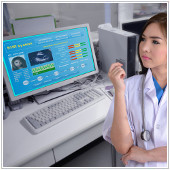
EHR stands for “Electronic Health Record” and a lot can go into getting your practice ready for one of these data-sharing, network-connected, enterprise-wide information systems.

One of the primary concerns when it comes to the actual physical setup of your EHR system is the computer hardware. You and your IT department - or perhaps a Managed Service Provider (MSP) with experience serving healthcare organizations - will need to assess how users can best connect to the system and then access and input information.

This brings to the forefront the decision about what kind of workstations to install, so let’s have a quick look at the 3 options your team should consider for working in an EHR environment.

Desktops

The first option is to install desktop computers which will be fixed to one location, hardwired, and stationary. Since they’ve been used in business for so long, the main advantages with desktops are that they’re low cost, installation & support are relatively simple, and there are numerous well-established vendors to choose from.

The drawbacks with desktops are that they take up more space than laptop computers, usually require the purchase of additional equipment in order to enable voice- or handwriting-recognition programs, and, since they’re stationary, every room requiring access to the EHR software will require its own workstation.

Laptops

The second option is to employ laptops which give you and your staff more flexibility. The advantages include easy connection to both wireless and traditional local area networks, better maneuverability to allow patients to see onscreen information, and portability should you need to move with the patient from one area of your practice to another.

One distinct disadvantage of using laptops is that they can be quite heavy, especially when carried numerous times throughout the day. Also, in terms of maintenance, repairs tend to be a bit more expensive with laptops, and you may need to send them to an off-site shop to be fixed.

Tablets

Offering even greater mobility than laptops are tablets, which are just as powerful as desktops and laptops but in hip, hi-tech, handy portable form. With tablets, users can move from room to room easily, inputting data with a digital pen as if they were writing on a paper chart or dictating to an application that accurately transcribes speech directly to the patient’s EHR.

The shortcomings associated with using tablets in an EHR setting include the learning curve that comes with new technology, such as writing with a stylus; handwriting programs that may not recognize all medical terminology; touchscreens that are prone to scratches; and the additional costs from either repairing or protecting against damage.

An Electronic Health Records system can provide enormous benefits to your organization by allowing for easier data entry, quicker data recall, and improved data accuracy. So after you’ve gauged interest among your staff, created an EHR budget, organized an EHR leadership team, and established an implementation plan, it’s time to get down to the nitty-gritty of hardware.

If you’re unsure about which direction to go with your EHR workstations, give us a call today.

Published with permission from TechAdvisory.org. Source.

Read More

Although Windows 10 comes with many exciting new features, accompanying them are complaints from the users: from shrinking storage space to the absence of the System Restore function. But fret not, we have listed the solutions for the most frequent Windows 10 problems. 1. Decreased storage space You might not be aware that after the […]

2016August3__MicrosoftWindowsNewsAndTips_BAlthough Windows 10 comes with many exciting new features, accompanying them are complaints from the users: from shrinking storage space to the absence of the System Restore function. But fret not, we have listed the solutions for the most frequent Windows 10 problems.

1. Decreased storage space

You might not be aware that after the upgrade to Windows 10, the old version of Windows isn’t deleted but is kept in the C:/ drive by the name of windows.old, which eats up a huge chunk of your disk space. Microsoft makes it this way just in case you change your mind and want to go back to your previous version. However, if you’re sure you want to permanently delete it, just follow these steps:

Click the Windows Start button and search for the Disk Cleanup app by typing cleanup. The drive selection box will appear, choose the drive your OS is installed on (the default drive is C:/drive), then wait for Windows to scan your system. Afterward, a box will pop up.

At this point, the system might present you with a list of files to delete, but if that’s not visible, select the Clean up system files option on the bottom left of the window. Windows will then present you with another box with the option to delete Previous Windows Installation(s). Tick the option and click OK, then click Delete Files to confirm your decision.

2. Updates that don’t work

First off, check if you’ve upgraded to the Windows 10 Fall update. If the problems still occur, download and run the Windows Update Troubleshooter, then restart the system and try to update again.

If that still doesn’t work, check that System Restore is configured (see number 3 below) and create a restore point. Type Window+X and select Command Prompt (Admin), type net stop wuauserv and hit Enter, then type net stop bits and Enter. Then open Explorer, go to C:\Windows\SoftwareDistribution and delete its contents including any sub-folders. Restart your PC, open Windows Update and click Check for updates.

3. System Restore isn’t enabled

In Windows 10, the System Restore isn't enabled by default. To turn it on, go to the Start Menu and search for Create a restore point. The System Properties box will appear. From there, choose the system drive and click the Configure button, then select Turn on system protection. Use the slider to set an appropriate amount of maximum disk space (about 5GB should be enough). Note that the update to Windows 10 version 10586 turns this off again so make sure to turn it back on after you update.

4. Privacy violations

Windows 10 faces a lot of criticism over its data-sharing defaults. We recommend you review them from time to time. To change the privacy settings, go to the Start Menu and go to Settings, open the app and select Privacy. At this point, you’ll see on the left-hand side a list of data such as your computer's camera, microphone, account information and so on. Turn off the ones that you don’t want Windows to have access to.

If you use Windows Defender, click the back arrow, select Update & Security, then select Windows Defender, see if you’re ok with the default setting that enables Cloud-based detection and Automatic sample submission.

Another privacy issue is Window Wi-Fi Sense, which is initially designed to get you connected to wireless networks more quickly. But if you’re not comfortable with the idea of sharing your network's wireless credentials among devices you can’t control, you can go to Start > Settings > Network & Internet, then click Manage Wi-Fi settings in the right of the window, tick all of the boxes under For networks I select, share them with my to disable Wi-Fi sense.

5. Windows 10 uses up all the 4G data

Windows 10 uses your internet bandwidth in the background. Follow these steps to stop it from consuming all your cellular data without you knowing: go to Settings and then Network & Internet, select Wi-Fi and then Advanced Options, turn on Set as metered connection. Note that this tip won’t work if your PC connects to the internet via Ethernet.

6. There’s no DVD player app

Strangely, Windows 10 was launched without a DVD player app, which means you can’t watch films on your PC. However, if you upgrade to Windows 10 from Windows 7 Home Premium, Windows 7 Professional, Windows 7 Ultimate, Windows 8 with Windows Media Center or Windows 8.1 with Windows Media Center, you’ll find a late released DVD app from Microsoft in Window Store for free download. But if you’re not one of the lucky users mentioned above, we recommend you to download VLC Media Player instead. It’s free!

We hope these 6 fixes will help smoothen your experience with Windows 10. But while there are some issues you can cover by yourself, others are more complicated and would better be handled by IT experts. Why not call us today? Our staff is here to eliminate your Windows 10 headaches.

Published with permission from TechAdvisory.org. Source.

Read More