
508-909-5961 [email protected]

When a new iOS update is released for iPhone, it’s exciting. In fact, you may be so amped that your trigger finger gets the best of you, and the next thing you know you’re saddled with a new iOS that is causing you headache after headache. To avoid this fate, it pays to think wisely […]

2016Apr12_iPhone_BWhen a new iOS update is released for iPhone, it’s exciting. In fact, you may be so amped that your trigger finger gets the best of you, and the next thing you know you’re saddled with a new iOS that is causing you headache after headache. To avoid this fate, it pays to think wisely before updating your iOS and prepare for it accordingly. Here are a few guidelines to follow to ensure your next iOS update goes smoothly.

Decide whether or not to update now

Just because a new iOS update is released doesn’t mean you must install it. In fact, users who do install early are sometimes faced with big headaches as the new iOS goes through technology growing pains. For example in the release of iOS 9.3, many users encountered a bug that caused Safari to lock up when hyperlinks were used to open web pages. Issues like this can cause business owners and general users alike to take a productivity hit. So if you’re heavily reliant on certain iPhone features, it makes sense to do your research before updating to a new iOS and get feedback from users who’ve already upgraded. Apple forums, YouTube and of course a simple Google search can help with this. Oh, and as for that iOS 9.3 Safari bug issue, it’s since been fixed with the release of iOS 9.3.1.

Know your login credentials

When downloading an iOS update, you may be asked for your Apple ID. If and when that time comes, you can avoid scrambling by being prepared with your password beforehand. You should also keep your passwords handy for your favorite applications and services, as sometimes you’re automatically logged out of these when updating your iOS.

Backup your phone

Updating your iOS can be a precarious task. While not something that happens incredibly often, there’ve been cases where users have lost important files or photos. And if you store important business information on your device, you certainly don’t want to lose it during an update. To avoid this, backup your phone beforehand either through iTunes or iCloud.

Power your battery & connect to Wi-Fi

Many users will choose to install new iOS updates Over-the-Air (OTA). This means you’re updating it over Wi-Fi on the settings in your phone rather than via iTunes. If you go this route, there are two things you should be aware of. Your battery must be charged to at least 50% (or be plugged into an outlet) and you can’t start the update through a cellular connection - it must be done through Wi-Fi. The point is, make sure to charge your phone and find a reliable Wi-Fi connection before starting the update process.

If problems occur after update, don’t panic…

After an iOS update, sometimes some very unusual problems occur. While most users will face no issues, others will encounter shorter battery life, unresponsive touch-screens, Wi-Fi problems, and more. If it happens to you, take a deep breath and don’t panic. Know they’re likely answers to your problems already out there on the web. Whatever your unique issue, a quick Google search should turn up multiple resolutions. You can also search the various Apple forums on the web.

Know you can always downgrade...most of the time

If you absolutely hate the upgrade, there’s good news. You can downgrade for a short period of time after an update is released. There is one catch though. You can only downgrade to a select number of previous versions. For example if you recently updated to iOS 9.3.1, you’ll be able to downgrade to iOS 9.2.1 or iOS 9.3. That means iOS 9.1 and earlier users are out of luck and must think carefully before choosing whether or not to upgrade.

While these 6 tips can be useful for the current iOS 9.3.1 update, you can also return to them for future iOS updates as general guidelines that apply. If you’re searching for more iPhone tips or need assistance with any Mac products, drop us a line today.

Published with permission from TechAdvisory.org. Source.
Read More

Make no mistake, healthcare costs are rising. For business owners who are generous enough to offer their employees insurance, this is undoubtedly a cause for concern. And you may wonder, is there any way to protect your employees and not go bankrupt in the process? Wearable technologies may be the answer. Here’s what you need […]

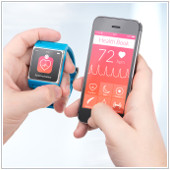
2016Apr11_HealthcareArticles_AMake no mistake, healthcare costs are rising. For business owners who are generous enough to offer their employees insurance, this is undoubtedly a cause for concern. And you may wonder, is there any way to protect your employees and not go bankrupt in the process? Wearable technologies may be the answer. Here’s what you need to know about utilizing them in the workplace.

Last year the retail giant Target offered both free and discounted versions of the activity tracker, Fitbit, to their staff of over 300,000. To incentivize employees to use the device, they grouped staff into teams and held a month long competition to see which team logged the most steps. The winning team was then given a million dollars to donate to their favorite charity. This is just one example of the growing number of businesses using wearable technologies to encourage employee fitness.

The CEO of Fitbit, James Park, is well aware of wearable technologies potential in the business sector. In an interview he said, “The cost of a Fitbit device and the associated services is very small compared to the savings from a healthier employee population.”

This practice of offering incentives to exercise is known as gamification, and retail providers are not the only type of businesses to get in on the action. Two US health insurance providers are now offering customers discounts on their premiums if they wear an activity tracker to monitor their progress on accomplishing health goals. So how does it work? If an employee takes 10,000 steps a day, for example, they could earn $1.25 towards their health insurance. If they perform even more activity or exercise, they could reduce their premiums to $1,400 a year.

Incentives to exercise aren’t the only way wearables can help employees improve their health. Depending on the type of wearable worn, everything from blood sugar levels, to heart rate and sleep patterns can be tracked. So if your employee visits a clinic because their symptoms are flaring up again, a doctor can use the info tracked on the wearable to explain why. This can make it easier for both doctor and patient to resolve the health problem.

Controversy

While it may sound like utilizing wearable technology in the workplace is a no brainer, this matter is not without controversy: tracking employee activity raises the question of privacy.

As more and more businesses discover the value of big data, it’s more likely that information tracked by wearables can be exploited. One technology consultant, Barbara Duck, notes that tracking health information can lead to insurers assigning a score to your physical activity and health, and selling that information. Insurers could then use this information to charge consumers outrageous fees.

While this is just the beginning of wearable technology being used in the workplace, it’s too early to tell how privacy will be affected in the long run. As of right now it looks like wearables will be a growing trend in the future. And they’re certainly worth considering as they can reduce the costs of employee insurance and create a healthier, more productive staff. If you’d like to learn more about wearable or other healthcare related technology, get in touch. We’re happy to share our expertise.

Published with permission from TechAdvisory.org. Source.

Read More

You probably love your Android tablet. It can be a handy tool that allows you to communicate and get work done on the go. But what if this same beneficial tool was actually hurting your business? Yes, it’s possible. Like all electronic devices, your Android tablet has the power to severely disrupt your sleep. And […]

2016Apr8_AndroidTablet_BYou probably love your Android tablet. It can be a handy tool that allows you to communicate and get work done on the go. But what if this same beneficial tool was actually hurting your business? Yes, it’s possible. Like all electronic devices, your Android tablet has the power to severely disrupt your sleep. And as a business owner, this can have a dramatic effect on the growth and success of your organization. Here’s what you can do to prevent this.
Don’t use it before bed

It’s been widely recognized that the blue light emitted from screens and mobile devices can disrupt sleep, suppressing your body’s melatonin levels (the hormone that induces sleep). Because of this and the distractions your tablet produces, it’s best to avoid using it a half hour before bed. However, if this isn’t possible here are a few tips to prevent your device from causing sleep disruption.

Silence distractions with Google Chrome’s Reader Mode

Reading before bed can be an effective way to induce sleep. However, if you’re using your tablet to browse the Internet, you’re often exposed to ads which are sometimes loud and flashy. Just as you’re nodding off, one of these ads could startle you awake and out of slumber mode. So what can you do?

Google Chrome’s Reader Mode can eliminate unnecessary ads and images, placing an emphasis on the text. To activate Reader Mode, type chrome://flags into your navigation bar, scroll down till you find Reader Mode triggering and choose Always from the menu. The next time you launch a page on Chrome, click on the banner that appears at the bottom of the page that reads Make page mobile-friendly. And just like that your text will be highlighted and ads eliminated.

Prevent disturbances

If you’re letting emails, calls and text messages wake you up in the middle of the night, then you are missing an obvious way to get a better sleep. Enter the Do Not Disturb setting. This will shut out all of these nightly annoyances so you can unplug from the world and focus on doing something important for yourself - getting a good night’s rest.

To turn on Do Not Disturb, open Settings > Sound and Notification. Then click on Do Not Disturb. From here you can choose which contacts can get through to you while you’re in dreamland.

Dim your device

While Android tablet doesn’t have a built in feature to adjust the amount of blue light emitted, there are apps that can help you easily adjust the filter opacity, which enables your screen to be less bright. The free app Screen Dimmer is one option you can try.

Monitor your sleeping habits

Do you constantly wake up at night unsure as to the reason why? Are you sleeping better or worse on nights when you consume certain food or alcohol? Or do you sleep better on the days you exercise? If you’re unsure of these answers, there’s an app for it. Using a motion sensor and sound recording, SleepBot will monitor your sleeping habits to help you discover which nights you sleep best. Then you can try to recreate those conditions to resolve your sleep issues.

No matter your business, sleep is vital to your success. We hope these five tips will help you get the sound sleep you desire. If you’re curious to learn more about how the Android tablet can improve your life and business, give us a call.

Published with permission from TechAdvisory.org. Source.

Read More

Recently, Microsoft announced a new feature in Office 365 Groups called Connectors. As part of their new openness mantra, Office 365 Connectors allows you to connect with popular third party services without ever having to leave your Outlook client. This means relevant content and updates that you want are sent immediately to your group feed, […]

2016Apr7_MicrosoftWindowsNewsAndTips_BRecently, Microsoft announced a new feature in Office 365 Groups called Connectors. As part of their new openness mantra, Office 365 Connectors allows you to connect with popular third party services without ever having to leave your Outlook client. This means relevant content and updates that you want are sent immediately to your group feed, making workflow more seamless. Here is a bit more detail on what Office 365 Connectors has in store for you.

What can it do?

Office 365 Connectors enable users to access third party apps and services within their Outlook groups, rather than having to scour through dozens of windows to access a specific application. This new feature allows you to keep your company’s discussion in one place, and enables your employees to stay up-to-date regardless of the service used to broadcast an event. For example, your team members can be informed about a particular hashtag that your company is following on Twitter without having to explicitly open the page. Groups aren’t limited to one particular service either. With connectors you can use Twitter, Trello, Mailchimp, Bing, UserVoice and over 50 other services.

Small organizations can also take advantage of connectors. Office 365 lets you develop your own connectors by embedding the Connect to Office 365 button on your site. This allows users to connect to your service and get updates on your company, as they would with other third party services. Basically, with connectors, your Office 365 client becomes a hub for third party that keeps your company in sync to get more work done.

Connector card

Connector cards offer a user friendly way to interact with external applications. If a particular connector is added to a group, connector cards are generated within the group’s activity feed. While most cards will display events in plain text, some applications like Twitter and Trello provide formatted actions to interact with the card. Trello, for example, allows you to Assign or Comment on an event card.

Who can create a connector?

Office 365 group members can configure and use an array of connectors. Once you configure a connector for a specific group, that app will be also be available for other members. However, the person who added a connector to the group is the only one capable of modifying that app.

How do you access Office 365 Connectors?

With its public release, any Office 365 Mail user can use Office 365 Connectors for Groups. Simply navigate to a Group from your Outlook page and click on the Connectors tab at the top of the page. From here, you can connect the available third party services on offer to any of your Outlook groups. You can even configure the settings of your apps without ever having to leave Office 365. However you should probably only consider pulling in the applications that you think your group will be using the most.

As your business grows, you’re going to need more services to be more productive in the workplace. By aggregating them all in one place, you save time shifting around dozens of apps to find the information that you need. So the next time you create an Office 365 Group, help your team members work more efficiently by setting up some connectors.

If you’re interested in learning about the latest Office 365 updates, contact us today.

Published with permission from TechAdvisory.org. Source.

Read More