
508-909-5961 [email protected]

The new Windows 10 interface looks pretty good and quite intuitive but something is missing - your signature style. The cool thing about Windows 10 is that it gives you the ability to customize your device any way you like. So if you’re tired of seeing a blue color theme or if you’re the sort […]
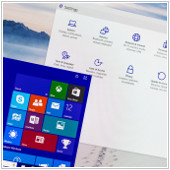
2016Mar25_MicrosoftWindowsNewsAndTips_BThe new Windows 10 interface looks pretty good and quite intuitive but something is missing - your signature style. The cool thing about Windows 10 is that it gives you the ability to customize your device any way you like. So if you’re tired of seeing a blue color theme or if you’re the sort of person that absolutely hates that notification sound, there are a couple of ways to customize your desktop. Stamp your identity into your PC by doing these.

Change your themes

Probably the most obvious way to personalize your Windows 10 is by changing your background and lock images by right-clicking on your desktop and going to the Personalization settings. Fiddle around with the different themes you want to see every time you minimize your windows or even add new themes by selecting your own or by clicking on the Get more themes online option.

Use dark mode

Want to give your Windows 10 an edgier feel? Replace those white backgrounds with dark mode. It does take a bit of effort to get to though. Open the run menu (Windows key + R) and type regedit to open the Registry. Then go to HKEY_CURRENT_USER> SOFTWARE> Microsoft> Windows> CurrentVersion> Themes> Personalize. On the right, you’ll notice an option called AppsUseLightTheme. Open up the box, and change Value Data from a 1 to 0.

Changing the value to 0 switches off the light theme and takes you to dark mode. To make sure the changes are made you need to logout of your PC and log back in. To switch the themes back to the Light theme just take the same steps but instead you need to switch the Data Value back to 1.

Virtual desktops

If you’re having trouble separating your work files from your personal files, try creating a virtual desktop. Press the Windows key + TAB to show all your open windows. At the bottom right corner of your screen you’ll notice an option to add a new desktop. Simply click on it to create a new desktop and immediately enjoy looking up your hobbies on one desktop while strictly doing business on the other.

To quickly switch between your desktops you can use the CTRL + Windows key + left/right arrow shortcut to maneuver between screens.

App snapping

App snapping is not exactly a new feature for experienced Windows users but with Windows 10, you can now snap any app in place. For people who like to multitask, this feature can be just for you. Snap any app window into one side or corner of your screen by simply dragging it into the desired area. You can have a maximum of 4 separate windows open in your monitor at the same time for when you want to browse the internet while you’re filling out spreadsheets.

Reorganize your Start Menu

To add a little more “you” into your Windows PC you can do a few things to customize how your apps are readied on your Start Menu. To begin with, you can resize the Start Menu by simply dragging the top or right side of the menu to resize.

You can choose to resize the live tiles by right-clicking on them and selecting the Resize option. You can also rearrange application tiles by dragging them anywhere around the Start Menu. Or if you don’t see yourself using a particular application simply right click the tile and select Unpin from Start. On the other hand, you can pin applications into the Start Menu by going to the All Apps tab, right-clicking and choosing Pin to Start. For even faster access to the apps that you like to go to, simply pin the program to the task bar.

Change color themes

Is plain black Start Menu color not doing it for you anymore? Just right-click on your desktop, choose Personalize> Color and select any accent color that suits you. Switch on the Show color on Start, taskbar, action center, and title option if you want this color applied to the entire menu. There are also various other options you can choose to display the Start Menu by going to the Start section of the Personalization settings.

Disable notifications

We don’t know where you stand on app notifications but if you absolutely hate it and wish to never hear that notification sound ever again, simply click Start> Setting> System> Notifications>Actions and switch off whatever app notifications you don’t want. Goodbye annoying reminders.

Switch up and personalize your Windows 10 how ever you like by using some or all of these options and hopefully you get the settings that’s just right for you. If you would like to know about more ways you can personalize your desktop or need information on anything Windows 10 related, give us a call and we’ll be happy to help.
Published with permission from TechAdvisory.org. Source.

Read More

Apple could soon have another device to wrangle consumers back in again. With the new 9.7-inch iPad Pro, you get a tablet as powerful as its predecessor but it happens to be smaller and cheaper. Will this be the go-to tablet for all your personal computing needs? Before it’s available in an Apple Store near […]

2016Mar24_AppleMacOS_BApple could soon have another device to wrangle consumers back in again. With the new 9.7-inch iPad Pro, you get a tablet as powerful as its predecessor but it happens to be smaller and cheaper. Will this be the go-to tablet for all your personal computing needs? Before it’s available in an Apple Store near you, you should probably know what features it offers and see if it’s the right device for you.
Design

The new iPad Pro model will be smaller than its predecessor sporting a 9.7-inch model and follows the look and design of the iPad Air 2. With a 2048 x 1536 pixels screen resolution, you can expect your display to remain pretty as well. The new model will be available in rose gold, silver, gold and space gray.

The new iPad Pro will also sport a quad-speaker system around the sides of the tablet. Apple claims that the 9.7-inch iPad Pro will feature a True Tone Display, making this a device you can take anywhere. This changes the white point of your iPad’s display based on the different ambient lighting environments that you’re in. So if you’re under direct sunlight, the screen will appear bleached and if you’re under LEDs the display can appear bluish.

Hardware

Like the iPad Pro, the next-generation model also offers the same hardware and features. Storage is bumped up to 32GB with up to 4GB of RAM included. There will also be a 128GB model for those needing extra storage. The new iPad Pro will still include the old A9X processor, but this isn’t exactly a bad thing since it still outperforms other single-core processors and definitely comes out on top in terms of other Apple devices.

The smaller iPad Pro will also have the same amount of battery life as the 12.9-inch version. Apple states that browsing time with Wi-Fi or cellular data can last up to 9 to 10 hours, which is decent for battery life.

Better photo and video capturing

While most of the old iPad Pro’s features remain within the 9.7-inch model, there are some noticeable upgrades to its camera. Probably one of the more exciting changes is its upgraded 12-megapixel rear camera and its ability to record 4K resolution videos. Video capturing, viewing and editing is also pretty good on the iPad Pro so think about whether your company will be utilizing some of these in the future.

Third party accessories

Apple will release a Smart Keyboard with smaller keys to remain proportional to the size of tablet to accompany the device. Additionally, the new model will also have full support for the Apple Pencil. While we are unsure if prices will change for the $99 dollar pencil, it’s safe to assume that the new iPad Pro will give you the same control and drawing experience for graphic designs and sketches.

More affordable

The Wi-Fi only 12.9-inch iPad Pro model is available for $949 while a 128GB Wi-Fi and cellular model is available for $1,079. Let’s face it, that price is pretty expensive for an individual let alone to equip an entire company. Instead, the new iPad Pro model offers the same capabilities of the previous model at a friendlier price. These iPads start from $599, so if you’re thinking about going Pro, you should definitely consider this product first.

These are just some of the few features that we can expect from the new iPad Pro. So consider all these tech specifications and factors first before deciding whether or not going Pro is the right decision for your business. Contact us if you want to know more about anything Apple related.

Published with permission from TechAdvisory.org. Source.

Read More

Need help getting some work done? Fortunately, Microsoft constantly releases new Office 365 features that can help you get an edge on the pile of work sitting on your computer. Among some of the new Office 365 features, you can Skype over a document with your coworkers, plot charts into excel with ease, and even […]

2016Mar23_Office365_BNeed help getting some work done? Fortunately, Microsoft constantly releases new Office 365 features that can help you get an edge on the pile of work sitting on your computer. Among some of the new Office 365 features, you can Skype over a document with your coworkers, plot charts into excel with ease, and even sign for a document electronically with any device. So treat yourself, and use these features to increase your productivity in the workplace.
Simultaneously edit a document with other people

With Office 365, people can work together on any Word, PowerPoint or Excel document in real time. This means multiple people can edit a document, figure out what changes have been made and who made them.

So if your employees are still creating documents by themselves, sending them over to their coworkers by email, and silently waiting for a reply, then this Office 365 feature can help cut down on unnecessary email waiting time.

Skype over a document with your coworkers

In addition to being able to work together on a single document, you can also verbally discuss the edits over Skype. This application lets you talk to everyone who is working on the document with a simple click of a button. You can also keep talking to your coworkers even after you’ve left the Office document session.

Link to files, don’t attach them

Is the file you’re sending too big? With the business editor of Office 365, you won’t have to worry about compressing your documents before sending them over email. You can simply attach the link to the file on your cloud application (Outlook Web App) and people with access to the link can immediately begin editing.

Let Bing find presentation images for you

Sometimes you just need that second opinion when you’re picking images for your presentation. That’s where Office Sway comes in. Basically, the application employs Bing image search to locate possible images that you can use for your presentation based on the words you are using.

Laser pointer mouse icon

Forgot your laser pointer on the day of your presentation? Simply go into presentation mode and hold Ctrl and the Left-Click mouse button to replace your mouse cursor with a laser pointer.

Change your electronic scribbles into text

This OneNote feature allows you to convert your electronic scribbles into text in just a few steps. Simply select the “Lasso Select” tool and circle the area you want edited and choose the “Ink to Text” option.

Electronic signatures

Printing out a document to sign it and then scanning it back to digital format is a bit outdated. However, with the Docusign app, you can setup your own electronic signature and sign documents easily from any device.

Create excel charts with ease

Office 365 has built in new features that will allow Excel to better present and format your data. Simply select the cells that you would want in a graph or table, open the Quick Analysis tool and pick however you would like to visually represent your information. Voila! Instant chart.

Turn data from Excel into a map

Speaking of visual representation, did you know that you can convert your data into images? Provided that your data takes note of geographic locations, the Power Map feature can immediately distribute your recorded facts and figures over a 3D map.

Create and Convert PDF Files

You have a variety of choices when creating PDF files from word documents. Exporting your word documents into PDF files can be done by going to File>Export>Create PDF/XPS. You also have the option of saving just a portion of a file by indicating the pages you want to only be converted into PDF.

On the other hand, if you would like to edit a PDF, just open the file in the word document, where the PDF content will be opened in a new file. From here, you can copy and edit any content, images or diagrams.

Consider utilizing some or all of these features to make the most out of Office 365 and make your life a bit easier. If you’d like to know more about other features that Office 365 has to offer, give us a call.

Published with permission from TechAdvisory.org. Source.

Read More

Do you know how to get the most out of Google Drive? As with a lot of technology, most of us don’t know all the ins and outs of it. That’s why we’ve come up with this list of five helpful tips that some Drive users are completely unaware of. Here’s how you can use […]

2016Mar22_GoogleApps_BDo you know how to get the most out of Google Drive? As with a lot of technology, most of us don’t know all the ins and outs of it. That’s why we’ve come up with this list of five helpful tips that some Drive users are completely unaware of. Here’s how you can use them to your maximum benefit.

Use keyboard shortcuts

Keyboard shortcuts are all the rage these days, and Google Drive is not immune to this phenomenon. Here are a few that are quite helpful.
  • n: rename a selected item
  • d: show or hide the details pane
  • /: search Drive
  • z: move selected item to a folder
  • Shift + s: add a new spreadsheet
  • Shift + p: add a new presentation
  • Shift + t: add a new document
For a complete list of all Google Drive shortcuts, check out the official Google page.

Utilize revisions

Perhaps you want to see the revisions a coworker made to one of your documents. Or perhaps you hate your latest draft and want to recover an older version of it. With Google Drive, it’s all possible. Simply open the desired document, click File>See revision history, and all your revisions will appear in a sidebar to the right of the document. Then click on the revision you wish to see. If you’d like to revert to an older version, instead of your current draft, click on Restore this revision in the right sidebar.

Benefit from Suggesting mode

If you’re collaborating with another person on a document, Suggesting mode allows you to make suggestions to it without actually changing the text. Your suggestions will be seen by the initial writer, and he or she can then either approve or disapprove of them, providing the author the option to choose whether or not to implement them in the final document. To switch to Suggesting mode, click on the pencil shaped icon in the upper right corner of a document. When the drop down menu appears, click on Suggesting (Edits become suggestions).

Share large files

There has likely been an occasion where you wanted to send a very large file to another colleague, friend or family member, and were unable to do so through a free service. Google Drive offers a workaround for this dilemma. To take advantage of it, create a shared folder and upload your file to that folder. Once complete, you can share the file with whomever you wish by right-clicking on it, selecting Share, and then entering the person’s email address of who you wish to share it with. They’ll receive an email with the link to the file, and can access it from there.

Try Google Drive add-ons

Add-ons have become quite popular these days with browsers. And so it is as well with Google Drive. To discover the wonderful world of Google Drive add-ons for yourself, click Add-ons in between Table and Help in the upper menu (above the tool bar). There are plenty of helpful add-ons to choose from, including tools such as writing aids, mind mapping, charts, music notation and more. Once you install an add-on, it will appear in your Add-ons drop down menu.

If you follow these five Google Drive tips, you are one step closer to getting the most out the service. If you’d like to learn how else you can leverage Google’s products to better your business, don’t hesitate to get in touch with our experts.

Published with permission from TechAdvisory.org. Source.

Read More