508-909-5961 [email protected]

Whether it’s a child trying to convince you to buy ice cream or one of the hundreds of soda advertisements you see every year, repetition is a common tactic used to incite people to take action. Sometimes you may not even notice the repetitive messages you’re receiving, like in the case of advertisements, while sometimes […]

164_B_MWWhether it’s a child trying to convince you to buy ice cream or one of the hundreds of soda advertisements you see every year, repetition is a common tactic used to incite people to take action. Sometimes you may not even notice the repetitive messages you’re receiving, like in the case of advertisements, while sometimes this persuasion method is blatant and annoying. With their constant popup screens telling you to upgrade, Microsoft has fallen into the annoying category. But there is a way to silence this repetition for the time being, and here’s how you can do it.

If you’re like many people who are happy with their current Microsoft operating system, you may have no desire to upgrade to Windows 10. And while Microsoft seems to be doing everything they can to force your hand, like no longer offering security updates for Windows 8, upgrading is still avoidable for now. So if you’d like to get rid of the annoying prompts that are likely pestering you on a regular basis, it is possible to do so. And believe it or not, Microsoft themselves have released instructions on how to do this and they can be found their website.

How to block Windows 10 prompts

To block Windows 10 popups, you will need to dig into your PC’s registry and disable the upgrade path. However, a word of warning before you start: editing your registry incorrectly can cause serious problems to your PC. Before you make any modifications, back up your computer and registry in case anything goes wrong. In other words, at this point you're proceeding at your own risk.

If you are a Windows 7 Pro, Ultimate or Windows 8.1 Pro user and have admin permissions on the computer, follow these steps.

  1. Open up group policy editor (gpedit.msc)
  2. Browse to Computer Configuration>Administrative Templates>Windows Components>Windows Update Policy
  3. Switch on the Turn off the upgrade to the latest version of Windows through Windows Update setting
For users who are on a non-Enterprise version of Windows 7 or 8.1, you will need to input the below registry key in manually:

Subkey: HKLMSoftwarePoliciesMicrosoftWindowsGwx DWORD value: DisableGwx = 1

And that’s all there is to it. Now you will no longer be bothered with popups bugging you to upgrade to Windows 10.

That being said, if you are currently running Windows 8 you need to make sure that you've upgraded to the latest “8.1 Update” version of the software so that you can enjoy continued 'Mainstream Support’ (including new features) until 9 January 2018 and ‘Extended Support’ (security patches) until 10 January 2023. If you're running the original Windows 8.0 you will no longer have support and your systems could be at risk.

If you would like additional assistance in blocking Windows notifications or help with other IT related needs, we are happy to be of service. Get in touch with us today.


Published with permission from TechAdvisory.org. Source.

Read More

As of writing, Google Chrome is by far the most widely used web browser on the Internet - and for good reason. It is fast, clean, versatile, and delivers a great browsing experience to its users, regardless of the device they use. But as Chrome becomes more popular, its Web Store has become bloated with […]

GoogleApps_Jan7_BAs of writing, Google Chrome is by far the most widely used web browser on the Internet - and for good reason. It is fast, clean, versatile, and delivers a great browsing experience to its users, regardless of the device they use. But as Chrome becomes more popular, its Web Store has become bloated with thousands of add-ons. Yes, some of these extensions are shining stars but many others are simply a waste of time and memory space. So let’s take a look at some powerful extensions that can come in handy and save you a lot of time.

StayFocusd

If your job involves staring at a computer screen all day, this extension could be the perfect productivity booster. Why? Because it can be all too easy to get distracted by certain sites and other time wasters while you’re working. But things can change with StayFocusd. It’s simple - you set a time allowance for particular websites like Facebook, Youtube, or Twitter, and once you’ve reached the time limit, StayFocusd blocks access to those sites, reminding you to focus on your work.

AdBlock

Today we are hit with large numbers of advertisements on the web, some of which are trying to trick people into downloading something harmful to their computers. This is where AdBlock comes in. This extension is the most popular extension on the Chrome Web Store, with over ten million active users. AdBlock is designed to block most ads from showing on Chrome. Removing ads from your screen can greatly improve your experience and increase the speed of your browser.

LastPass

While Chrome already has a built-in password manager, LastPass is a better option when it comes to password management. Instead of trying to memorize countless passwords for your online accounts, LastPass can generate new and secure passwords every time you log into a website and sync your passwords whenever you need them. With LastPass you can easily gain access to your accounts, enter credit card details, and fill out online forms with just a few clicks.  

Evernote Web Clipper

Evernote is a powerful extension that allows you to quickly and easily save web content from Chrome and transfer it straight into your Evernote account. With the press of a button, you can grab an image from the web page, make annotations, create summary links, and save a distraction-free version for later perusal.

Momentum

If you find yourself losing motivation to work during the day, Momentum could be the dose of inspiration you’re looking for. Momentum replaces Chrome’s default new tab screen with a personalized dashboard that features a beautiful scenic background, a daily inspirational quote, the weather report, a to-do list, and quick links widgets for you to add your favorite sites.

Pocket

Pocket is the best way to save articles, videos, and any other web pages that you wish to view later. Simply hit the Pocket extension button when you come across something interesting and that page will automatically be synced to your device, so you can view it at any time, even without an Internet connection. With Pocket, you can set things aside when you have an important work at hand.

If you want to learn how Chrome’s extensions and other Google Apps can boost your staff’s productivity and efficiency, get in touch with our experts today.

Published with permission from TechAdvisory.org. Source.

Read More

There’s more to social media marketing than using Facebook, Twitter, and LinkedIn. YouTube has rapidly grown from a small video sharing website for amateurs to the largest online video platform in the world. It offers an incredible opportunity for businesses to reach out to their current and potential clients through personalized, engaging videos. Are you […]

SocialMedia_Jan11_BThere’s more to social media marketing than using Facebook, Twitter, and LinkedIn. YouTube has rapidly grown from a small video sharing website for amateurs to the largest online video platform in the world. It offers an incredible opportunity for businesses to reach out to their current and potential clients through personalized, engaging videos. Are you using YouTube videos to market your business? We provide some nifty tricks to help you get better results.

Keep it short and simple

Most people have short attention spans and won’t watch videos that are longer than a couple of minutes unless they’re really interested. This means lengthy videos might not perform as well as you might hope, since viewers are likely to be turned off completely. There’s no fixed formula here, but the idea is to create videos that convey your intended message within five minutes at most. If you have the need for longer videos, simply split them into small segments - this is another great way to keep your visitors hooked and make them want to come back for more.

Use humor in your videos

Have you ever wondered why the funny videos on YouTube earn so many hits in such a short time? That’s because people love humor. We all like a good laugh. There are several YouTube channels out there that have had huge success by injecting humor into their videos. You don’t have to make your audience fall on their backs laughing - just flashing a little sense of humor will do the trick.

Consider quality over quantity

With the vast number of amateur and low-quality videos that come up on YouTube’s search results, you need to go the extra mile and make your video stand out from the competition. It’s worth investing in a high-quality video camera if you’re serious about YouTube marketing. Each of your videos should contain helpful and engaging content. And before posting it live, make sure to ask for a second or third pair of eyes to go through it again. This way you can take out the fluff and polish the videos so they’re appealing to viewers.

Set engaging titles

When it comes to YouTube marketing, this is perhaps the most important thing to keep in mind. Make sure you include relevant keywords in the title, so your viewers know what to expect to see in your video. The general rule of thumb is to keep it clear and concise, since long titles will be truncated in YouTube’s search results. Another thing is to refrain from using misleading titles that trick people into watching your video. Not only will your viewers hit the close button right away, this cheap trick will also have a negative impact on your video’s ranking.

Promote your videos

YouTube videos have a high chance of ranking well in Google, being the search engine giant’s subsidiary and following similar search algorithms. But this is no excuse to skimp on marketing. There are many ways to promote your videos to your specific target audience. Using relevant keywords and descriptions may help with organic traffic, but there’s also paid options like Google AdWords and Facebook Ads that will help you earn more exposure for your videos.

YouTube is a great tool to generate traffic and interact with your customers online. But do keep in mind that no matter how great your videos are, they won’t get seen if you don’t promote them well enough. If you want to learn how to maximize your YouTube marketing campaigns, get in touch with our experts today.

Published with permission from TechAdvisory.org. Source.

Read More

Computer and laptop buyers today need to make a decision between getting either a solid state drive (SSD) or a hard disk drive (HDD) as a primary storage component for their device. But which one is the better choice? In this article we outline the differences between SSD and HDD, as well as the pros […]

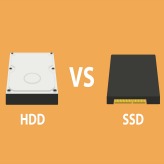
Hardware_Jan5_BComputer and laptop buyers today need to make a decision between getting either a solid state drive (SSD) or a hard disk drive (HDD) as a primary storage component for their device. But which one is the better choice? In this article we outline the differences between SSD and HDD, as well as the pros and cons of both, so you can make the right decision for your next purchase.

What is an HDD?

A hard disk drive (HDD) is basically a storage device in a computer. It is comprised of metal platters with magnetic coating, spindle, and various moving parts to process and store data. The common size for laptop hard drives in the 2.5” model, while a larger 3.5” model is usually found in desktop computers.

What is an SSD?

A solid state drive (SSD) is also another type of data storage that performs the same job as an HDD. But insteading of storing data in a magnetic coating on top of platters, an SSD uses flash memory chips and an embedded processor to store, retrieve, and cache data. It is roughly about the same size as a typical HDD, and bears the resemblance of what smartphone batteries would look like.

HDD and SSD Comparison

Now let’s take a closer look at the two devices. We break it down into the following main categories:

Speed This is where SSDs truly prevail. While HDDs need a long time to access data and files because the disk must spin to find it, SSDs are up to 100 times faster since data can be accessed instantly. This is why an SSD-equipped PC will boot within seconds and deliver blazing fast speed for launching programs and applications, whereas a computer that uses a HDD will take much longer time to boot the operating system, and will continue to perform slower than an SSD during normal use.

Capacity As of writing, SSD units top out at 16TB storage capacity. Although there are large SSDs, anything that’s over 512GB is beyond most people’s price range. HDDs, on the other hand, have large capacities (1-2TB) available for much more affordable prices.

Durability HDDs consist of various moving parts and components, making them susceptible to shock and damage. The longer you use your HDD, the more they wear down and most eventually end up failing. Meanwhile, an SSD uses a non-mechanical design of flash storage mounted on a circuit board, providing better performance and reliability, and making it more likely to keep your files and data safe.

Noise An HDD can sometimes be the loudest part of your computer. Even the highest-performing HDDs will emit some noise when the drive is spinning back and forth to process data. SSDs have no moving parts, meaning it makes no noise at all.

Heat More moving part means more heat, and HDD users will have to live with the fact that their device will degenerate over time. SSD uses flash memory, generating less heat, helping to increase its lifespan.

Cost To be frank, SSDs are much more expensive than HDDs for the same capacity. This is why most computers with an SSD only have a few hundred gigabytes of storage. HDDs are about twice as cheaper than SSDs.

Despite the high costs and low capacity, SSD is a clear winner over the HDD in terms of performance. While you’re paying more for less memory with an SSD, you’re investing in a faster and far more durable data storage option in the long run.

We recommend using an SSD as the primary storage for your operating system, applications, and most-used programs. You can install another HDD inside the same computer to store documents, movies, music, and pictures - these files don’t need to leverage the incredible access times and speed of SSD.

Looking to invest in some new hardware for your business? Make sure you talk with our experts before you make the decision - we can provide sound advice and help guide you in the right direction.

Published with permission from TechAdvisory.org. Source.

Read More